
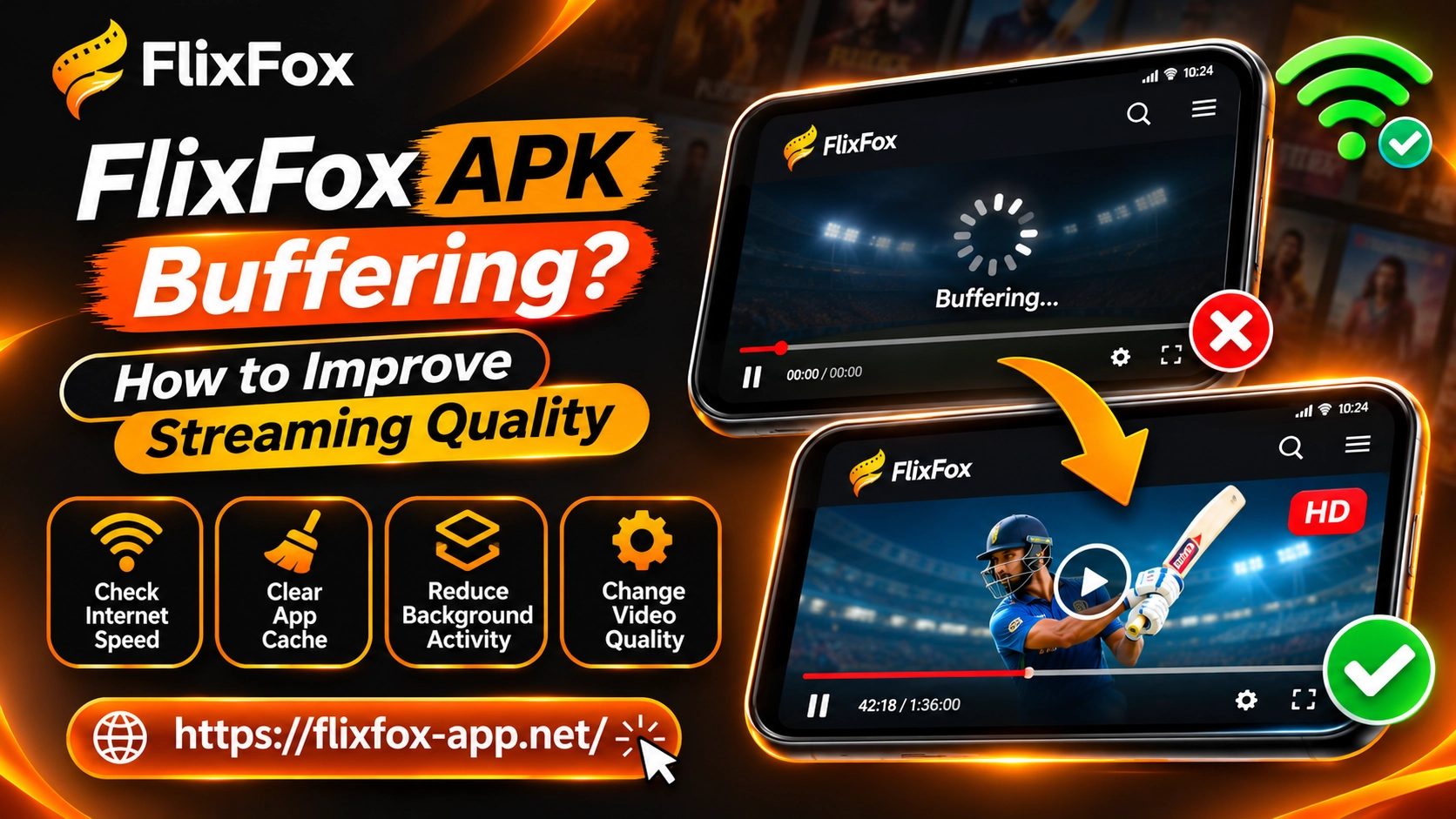

FlixFox Buffering? How to Improve Streaming Quality
Watching a movie becomes frustrating when videos keep buffering. Sometimes, playback pauses repeatedly or takes too long to start. However, these interruptions do not always mean the application has a problem.
If FlixFox APK keeps buffering, your internet connection, device performance, or selected streaming source could be responsible. Therefore, identifying the actual cause is the first step. This guide explains practical ways to improve streaming stability without changing unnecessary settings.
Why Does FlixFox Keep Buffering?
Buffering happens when video playback cannot receive data quickly enough. Consequently, the player pauses while loading additional content.
Several factors can cause this problem:
- Unstable Wi-Fi or mobile data.
- Limited internet bandwidth.
- Too many connected devices.
- Background downloads and updates.
- Low device storage or available memory.
- Temporary problems with a streaming source.
For example, if every video buffers, your network may be responsible. On the other hand, if only one stream struggles, its source could be experiencing interruptions.
Start by Testing Your Internet Connection
Your internet connection plays an important role in streaming quality. Even a fast package cannot guarantee smooth playback when the connection frequently drops.
First, open another streaming service or website. Check whether it loads normally. If other services also struggle, investigate your internet connection.
Next, run a speed test using a reputable testing service. Compare the results with the requirements of your selected video quality.
If FlixFox App Apk buffers despite a stable connection, continue with the following checks instead of repeatedly restarting the application.
Fix Weak Wi-Fi Signals
A weak wireless signal can interrupt video playback. This often happens when your device is far from the router.
Try these adjustments:
- Move closer to your Wi-Fi router.
- Keep the router away from thick walls.
- Disconnect devices using unnecessary bandwidth.
- Restart your router if the connection becomes unstable.
- Test another network to compare performance.
Additionally, check whether other people are downloading large files. Shared bandwidth can reduce the speed available for streaming. If FlixFox works better on another network, your original Wi-Fi connection may need attention.
Stop Background Downloads and Applications
Your device may be using internet bandwidth for several activities simultaneously. For example, software updates, cloud backups, and large downloads can compete with video streaming.
Close unnecessary applications and pause downloads temporarily. Meanwhile, avoid connecting too many devices to the same network.
On Android phones, you should also check background applications consuming memory. On computers, close unnecessary browser tabs and programs.
These simple changes can improve available resources when FlixFox Download struggles during playback.
Check Your Device Performance
Older devices may struggle when several applications run together. Limited memory, excessive background activity, and low storage can affect overall performance.
Try the following:
- Close applications you are not using.
- Restart your phone, tablet, or television.
- Check available storage.
- Remove unnecessary temporary files.
- Install available device updates when appropriate.
Additionally, avoid running demanding applications alongside video playback. If your device becomes responsive after restarting, temporary resource usage may have contributed to the problem.
Clear Temporary Application Cache
Temporary application files can sometimes contribute to unexpected behaviour. Clearing the cache may help when the application becomes unusually slow.
On supported Android devices:
- Open Settings.
- Select Apps or Application Management.
- Find FlixFox.
- Open Storage options.
- Select Clear Cache, if available.
- Reopen the application and test playback.
Remember that clearing cache differs from clearing app data. The latter may remove local settings or other information. If FlixFox Hd movies continues buffering, check the streaming source before repeating the same process.
Check Whether a Specific Stream Is Responsible
Sometimes, the problem comes from an individual streaming source rather than your device.
A stream may experience temporary interruptions or heavy traffic. Consequently, another available video might play normally.
Try opening a different title or stream. If the second option works smoothly, the original source may be responsible.
However, if every available stream buffers, investigate your network and device again. This comparison helps narrow down the actual cause.
Adjust Video Quality When Available
Higher-resolution videos generally require more consistent bandwidth. Therefore, slower connections may struggle with higher-quality playback.
If the player offers quality controls, select a lower resolution. Then check whether playback becomes more stable.
For example, reducing resolution may help FlixFox latest version play more consistently when available bandwidth is limited.
However, not every stream offers manual quality settings. Avoid assuming that every video supports resolution changes.
Quick Troubleshooting Checklist
Before making further changes, review these points:
- Test another streaming application.
- Restart your Wi-Fi router.
- Try another internet connection.
- Pause unnecessary downloads.
- Close background applications.
- Check device storage and memory.
- Clear temporary app cache.
- Test another available stream.
- Lower video quality if supported.
If FlixFox live cricket still buffers after these checks, the issue may involve the selected source or a wider service problem. Repeating the same fixes will probably not help.
Final Thoughts
Streaming interruptions can have several causes. Therefore, changing random settings is rarely the best solution. Start with your internet connection, then check Wi-Fi stability and device performance. Additionally, compare different streams and adjust video quality when available.
These steps can help identify why FlixFox TV keeps buffering. More importantly, they allow you to focus on the actual problem instead of wasting time on unnecessary fixes.