
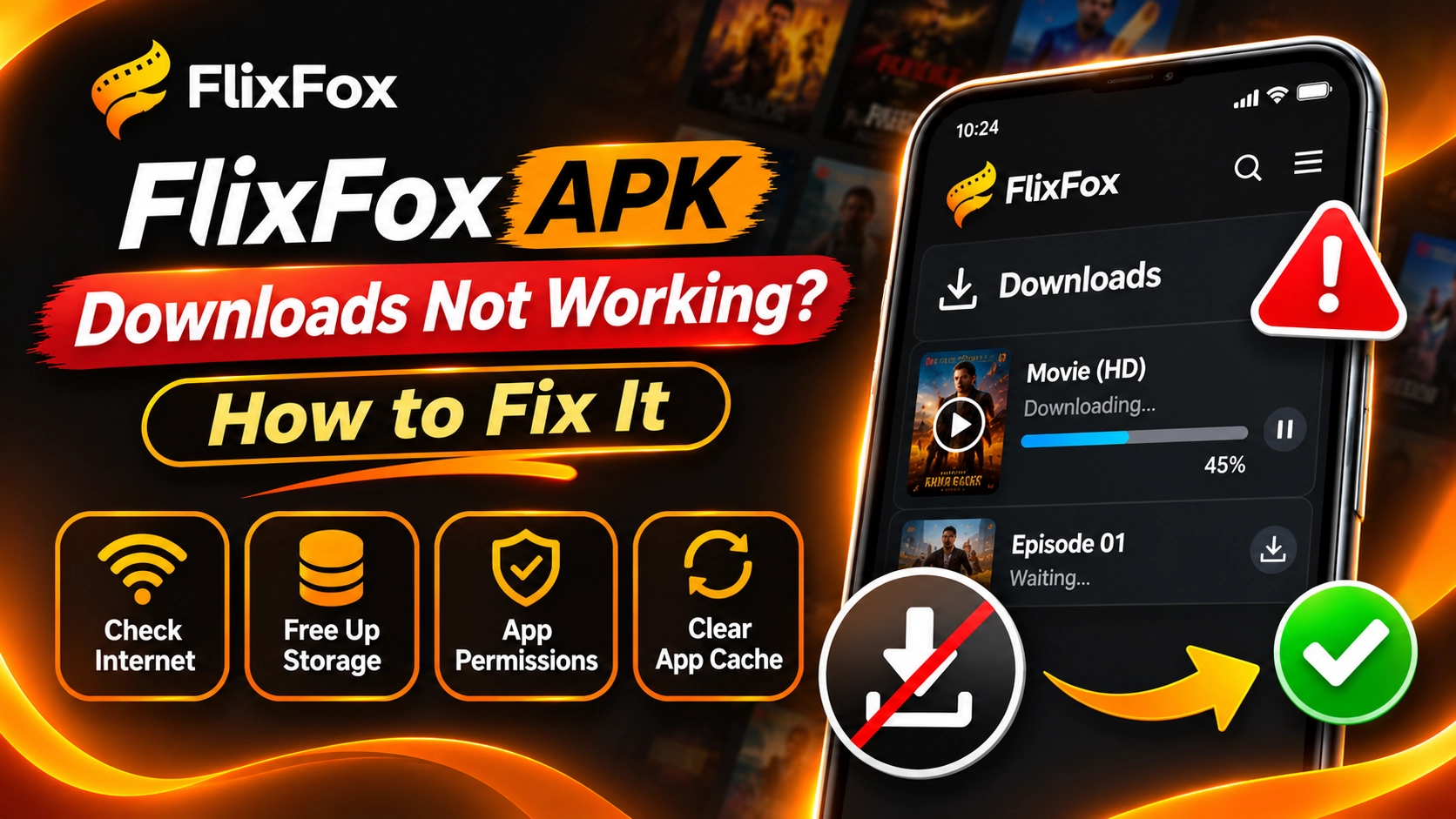

FlixFox Downloads Not Working? How to Fix It
A failed download can ruin your plans to watch something later. Sometimes the download button does not respond. Other times, progress stops unexpectedly or the saved file refuses to open. Each problem has a different possible cause.
If FlixFox downloads are not working, start by checking your internet connection, storage space, app permissions, and download source. These practical solutions can help you identify the issue without changing unnecessary settings.
Identify What Is Going Wrong
First, notice exactly what happens when you start a download. This makes troubleshooting easier.
| Download problem | Possible cause |
|---|---|
| Nothing happens after tapping | Temporary app issue |
| Download stops midway | Connection interruption |
| File is missing | Saving or permission issue |
| File will not open | Incomplete or unsupported file |
| Download starts very slowly | Network or source limitation |
Once you identify the symptom, try the matching solution below.
Fix Connection Problems First
A weak internet connection can interrupt file transfers. Even if websites open normally, your connection may struggle with larger downloads.
Try these checks:
- Switch between Wi-Fi and mobile data.
- Restart your router if Wi-Fi keeps disconnecting.
- Move closer to your router.
- Pause other large downloads.
- Try again using a stable connection.
If FlixFox APK downloads fail while other internet services also struggle, focus on your network first. Changing app settings will not fix an unstable connection.
Free Up Storage Space
Your phone needs enough free space to save downloaded files. A download may stop when storage becomes full. Sometimes, the device also needs extra temporary space during the process.
Open Settings and check your available storage. Remove unnecessary videos, duplicate photos, and unused applications. Also, check whether FlixFox APP has enough space to save the selected content.
Keep some additional space available before trying again. This is especially important when downloading large files.
Check the App’s Permissions
Android permissions can affect where an application saves files. If required access is restricted, the download may fail or disappear from the expected folder.
Open your phone’s Settings and select Apps. Find Flix Fox and review its available permissions. Allow only the access needed for its normal functions. These settings can also affect how FlixFox PC handles downloaded files.
Permission names vary between Android versions. Therefore, follow the options shown on your device rather than looking for an identical menu. After making a change, close the app completely. Open it again and test a small download.
Download Gets Stuck at a Certain Percentage?
A download that repeatedly stops at the same point may indicate an interrupted transfer or an unavailable source. Repeatedly pressing the download button usually does not help.
Instead, follow this sequence:
- Wait briefly to see whether progress resumes.
- Check your internet connection.
- Cancel the stalled attempt if it remains unchanged.
- Close and reopen the application.
- Start a fresh download.
If FlixFox APK Download keeps failing with the same file, try another available item. If other files work, the original content source may be the problem.
Clear Temporary Cache Files
Temporary cache files help applications load information faster. However, corrupted temporary data can sometimes cause unexpected behaviour.
To clear the cache:
- Open your Android Settings.
- Select Apps and find FlixFox.
- Open its Storage section.
- Tap Clear Cache, if available.
- Reopen the application.
Choose Clear Cache, not Clear Data. Clearing data may remove saved settings or require you to configure the app again.
Check the Saved File
Sometimes a download appears complete but the file does not open. This may happen when the transfer was interrupted or the file was saved incorrectly.
Open your device’s file manager and locate the downloaded item. Check its file size and extension. If FlixFox for Android saves an unusually small or incomplete file, delete that copy and try downloading it again from a trusted source. Also, confirm that your device supports the file format. Never open suspicious files just because they appear in your download folder.
When Should You Reinstall the App?
Reinstallation should be your last troubleshooting step. Consider it only when other downloads work normally but the application continues behaving incorrectly. Before removing it, make sure you can access a legitimate installation source. Keep any important local files or settings safe. Then reinstall a compatible version and test the download again.
If FlixFox old version still cannot download content, the issue may involve the specific source or app compatibility. Reinstalling repeatedly will not fix an unavailable source.
Quick Troubleshooting Checklist
- Internet connection works reliably.
- Enough storage space is available.
- Required permissions are enabled.
- Stuck downloads have been cancelled.
- Cache has been cleared when necessary.
- The download source is available.
- The saved file is complete and supported.
Final Thoughts
Most download failures have a practical explanation. A weak connection, limited storage, restricted permissions, or an interrupted source can prevent successful downloads. When FlixFox latest version v2.3.1 stops downloading, identify the exact symptom first. Then apply the relevant fix instead of changing several settings together. If the problem continues with one particular file, check its source before reinstalling the application.