
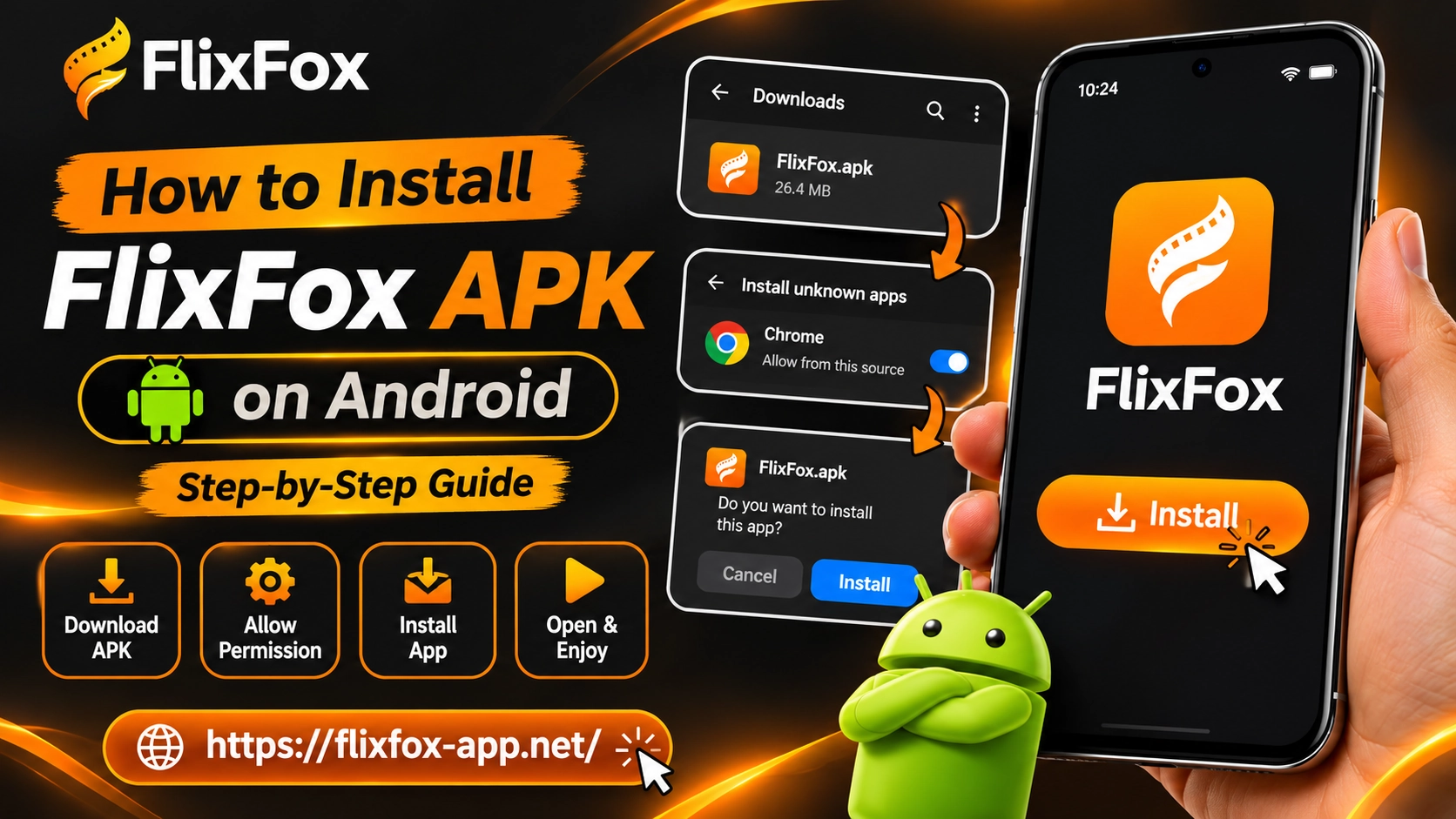

How to Install FlixFox APK on Android
Installing an Android application should be simple. However, users sometimes face blocked downloads, permission warnings, or failed installations. These issues can make the setup process frustrating. This guide explains how to download and install FlixFox APK for Android phones and tablets. Additionally, it covers common installation errors and practical solutions. Follow each step carefully to avoid unnecessary problems.
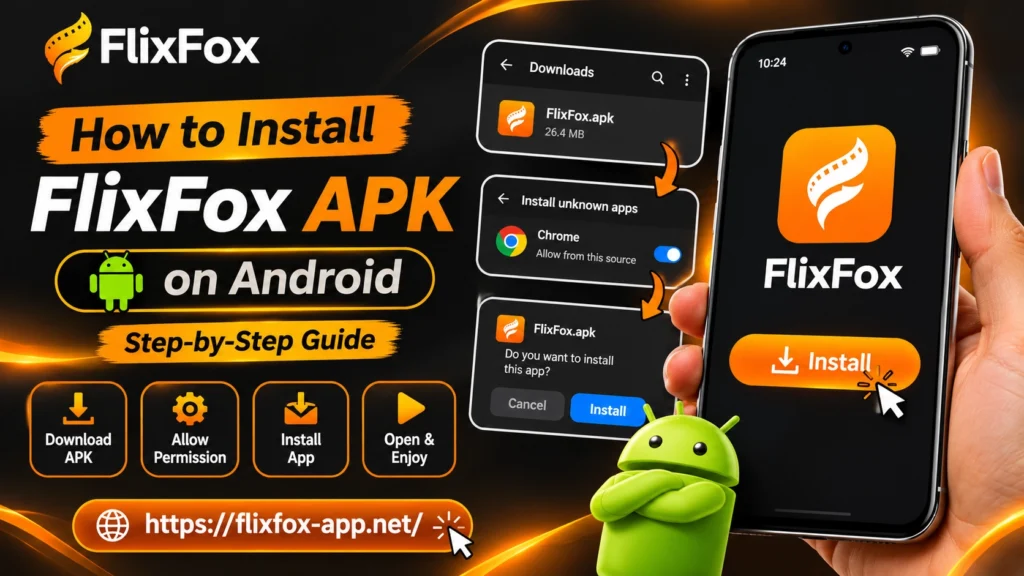
What You Need Before Installation
First, check a few basic requirements. These preparations can help prevent installation failures.
- Android device: Use an Android phone or tablet.
- Android version: Check the minimum requirement listed by the download source.
- Available storage: Keep enough space for the file and installation.
- Internet connection: Use a stable connection to prevent interrupted downloads.
- Trusted source: Avoid suspicious websites and misleading download buttons.
Also, check the downloaded file’s extension. A standard Android installation file ends with .apk. Before proceeding, make sure the file comes from a source you trust.
Step 1: Download FlixFox APK
First, open your preferred browser on your Android device. Visit Flixfox download page and locate the Android installation file.
Tap the download option to begin. If your browser displays a security warning, read it carefully before continuing. Android may show warnings when downloading applications outside the Play Store.
Next, wait until the download finishes completely. Do not open an incomplete file because it may cause installation errors.
Useful tip: Check the downloaded file’s name and size. If the download stops unexpectedly, delete the incomplete file. Then try again using a stable internet connection.
Step 2: Locate the Downloaded File
After downloading, you need to find the installation file. Fortunately, Android usually saves browser downloads in a dedicated folder.
- Open your phone’s File Manager.
- Select the Downloads folder.
- Find the recently downloaded FlixFox latest version file.
- Check that its filename ends with
.apk. - Tap the file to begin installation.
However, some devices organize downloads differently. If the file is missing, open your browser’s download history. From there, you can check its location and open it again.
Step 3: Allow Installation from Unknown Sources
Android restricts applications installed outside approved app stores. Therefore, you may need to grant permission before opening the downloaded file.
Follow these instructions:
- Open Settings when Android displays the permission warning.
- Find the Install Unknown Apps option.
- Select the browser or file manager you used.
- Enable permission to install unknown apps.
- Return to the downloaded file.
The exact menu names vary between Android brands and versions. For example, Samsung, Xiaomi, and other manufacturers may organize these settings differently. For safety, grant permission only to the application you trust. Once installation finishes, you can disable this permission again.
Step 4: Install and Open the Application
Now return to your Downloads folder. Tap the FlixFox hd file to open Android’s installer.
When the installation screen appears, select Install. Meanwhile, keep your device unlocked until the process finishes.
Once installation completes, select Open to launch the application. Alternatively, return to your home screen and find its app icon.
If Android displays an error, read the message first. It may indicate a compatibility issue, damaged file, or insufficient storage.
Step 5: Check Whether the App Works
After opening the application, check its basic functions. These quick checks help identify problems early.
- Does the app launch without crashing?
- Does the main screen load correctly?
- Can you navigate its available sections?
- Does it close unexpectedly?
If the application does not open, restart your device. Additionally, check whether your Android version meets the stated requirements.
Common Installation Problems and Solutions
Sometimes, installation fails even after following the correct steps. However, identifying the error can make troubleshooting easier.
| Problem | Possible Solution |
|---|---|
| App not installed | Check storage and device compatibility. |
| Download failed | Check your internet connection and retry. |
| Installation blocked | Review unknown-app permissions. |
| Parsing error | The file may be incomplete or incompatible. |
| File not found | Check Downloads and browser history. |
| App crashes | Restart your phone and check compatibility. |
Why Does Android Say App Not Installed?
This message can have several causes. For example, your device may not support the downloaded version. Alternatively, an older installation may conflict with the new file. First, check available storage. Next, confirm that FlixFox for Android TVis complete and compatible with your device. Also, check whether an older version is already installed. Before removing it, consider whether uninstalling could delete local app data.
What Causes a Parsing Error?
A parsing error means Android cannot process the installation file. This may happen because the download is damaged or the file is incompatible. Therefore, check the file extension and download it again from a trusted source. If the same error continues, review the app’s compatibility requirements.
How to Update FlixFox on Android
Updating an application can help maintain compatibility. However, always check the release details before replacing an existing version.
To update FlixFox OLD VERSION, follow these steps:
- Check the version currently installed.
- Compare it with the available release.
- Confirm that the new file supports your device.
- Download the updated file from a trusted source.
- Open it and follow Android’s update instructions.
- Launch the app and test its functions.
If the update fails, check compatibility with your existing installation. Meanwhile, avoid uninstalling the current version unless necessary.
Final Tips
A successful installation depends on a compatible device and complete file. Therefore, check the download source, available storage, and Android requirements before starting. Use this guide to install Flix Fox APK on your Android phone or tablet. If an error appears, follow its specific troubleshooting steps instead of repeating the entire process. This approach can save time and help you identify the actual problem.