
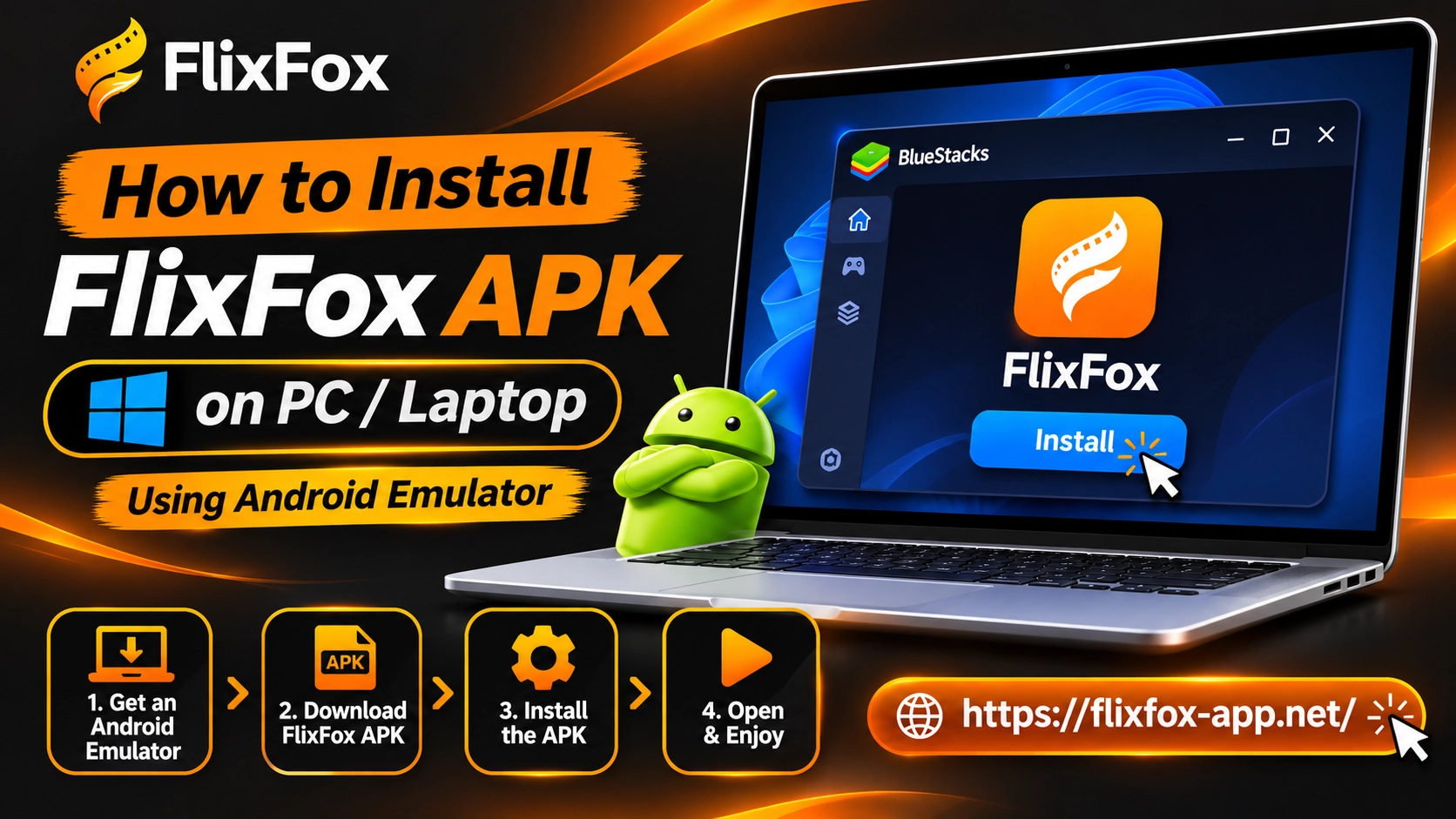

FlixFox on PC: Emulator Setup and Installation Guide
Want to use an Android entertainment app on your Windows computer? An Android emulator makes this possible without installing a mobile operating system. However, the setup requires a few additional steps.
This guide explains how to install FlixFox on a Windows PC or laptop. You will learn how to choose an emulator, configure its settings, install the application, and fix common problems. Moreover, each section focuses on practical instructions without unnecessary explanations.
Can You Install FlixFox Directly on a PC?
No. Windows does not natively support Android APK installation. Instead, you need an Android emulator to create a compatible Android environment.
An emulator runs Android applications inside a separate window. Therefore, you can use compatible mobile apps through your computer.
However, installation does not guarantee complete functionality. Some applications may experience compatibility, display, or navigation problems. For this reason, check the emulator requirements before starting.
What You Need Before Starting
First, prepare your computer and installation file. These basic requirements can prevent common setup problems.
- Windows PC or laptop: Use a Windows version supported by your emulator.
- Android emulator: Choose software supporting manual APK installation.
- Installation file: Keep a complete FlixFox APP file ready.
- Available storage: Leave enough disk space for installation.
- Internet connection: Use a stable connection for downloads.
- Hardware resources: Check your computer’s memory and processor capacity.
Additionally, close unnecessary programs before starting. This leaves more resources available for the emulator.
Step 1: Choose an Android Emulator
An emulator is the main software required for this process. Popular options include BlueStacks and other established Android emulators.
Before choosing one, consider these points:
- Does it support your Windows version?
- Can it install APK files from your computer?
- Does it offer suitable performance?
- Is it available through an official website?
- Does it receive regular software updates?
For example, BlueStacks provides an APK installation feature. However, features and system requirements can change between releases. Therefore, check its latest documentation before downloading. Also, confirm that your selected emulator supports the Android environment required by FlixFox PC.
Step 2: Download and Install the Emulator
After selecting an emulator, open its official website. Find the Windows download option and save the installer.
Next, follow these steps:
- Open the downloaded installer.
- Review the installation options.
- Choose an installation location, if available.
- Start the installation process.
- Wait until setup finishes.
- Open the emulator.
Some emulators may require additional permissions. In that case, follow their official setup instructions. Meanwhile, avoid changing Windows security settings unnecessarily.
Step 3: Configure the Emulator
Once the emulator opens, complete its initial setup. Depending on the software, you may need to select preferences or sign in.
Next, review these performance settings:
- Memory allocation: Leave enough RAM available for Windows.
- Processor settings: Choose an option supported by your computer.
- Display resolution: Select a comfortable screen size.
- Graphics settings: Start with the recommended configuration.
Additionally, avoid assigning all your computer’s resources to the emulator. Windows also needs memory and processing power. Suitable settings can help FlixFox hd video player, run more consistently, provided the software is compatible.
Step 4: Download the Android Installation File
Now open your browser and visit a download source you trust. Locate the correct Android version and save FlixFox TV app to your computer.
Before opening the file, check these details:
- Confirm that the download has finished.
- Check the filename and
.apkextension. - Compare its size with the source information.
- Avoid unexpected files or additional installers.
If the download stops unexpectedly, delete the incomplete file. Then try again using a stable connection. This prevents damaged downloads from causing installation errors.
Step 5: Install the APK Inside the Emulator
The installation method depends on your selected emulator. However, many emulators provide a manual APK installation option.
Follow these steps:
- Open the emulator.
- Find its Install APK option.
- Select the downloaded FlixFox APK file.
- Wait while the emulator processes it.
- Follow any installation prompts.
- Check the emulator’s app screen.
Some emulators also support dragging an APK file into their window. However, this feature may differ between versions. Once installation finishes, the application should appear in your emulator’s app list.
Step 6: Open and Test the Application
After installation, launch the application from the emulator’s home screen. Then check whether its main screen loads correctly.
Test basic navigation and available functions. Additionally, check whether the app closes unexpectedly or displays an error.
If FlixFox old apk does not open, restart the emulator first. Next, review its Android version and compatibility settings.
Remember that successful installation does not guarantee every feature will work on a PC. Touch-based controls may also behave differently with a keyboard and mouse.
Common PC Installation Problems and Fixes
Sometimes, an emulator may fail to install or run an application. However, identifying the specific problem makes troubleshooting easier.
| Problem | Possible Solution |
|---|---|
| Emulator not opening | Restart Windows and check system requirements. |
| APK installation failed | Check file integrity and compatibility. |
| Black screen | Review graphics settings. |
| Slow performance | Close background programs. |
| App keeps crashing | Restart the emulator and check compatibility. |
| Download interrupted | Check your connection and download again. |
| Keyboard or mouse issues | Review emulator control settings. |
Why Does APK Installation Fail?
An installation failure may indicate an incompatible Android environment or incomplete file. Therefore, check whether FlixFox latest version, is complete and compatible with the emulator. Also, review the emulator’s supported Android version. If the problem continues, consult its official troubleshooting documentation.
How to Improve Emulator Performance
Slow performance can result from limited memory, high processor usage, or unsuitable graphics settings. First, close unnecessary applications. Then review the emulator’s resource allocation. Additionally, check whether your computer meets the recommended requirements. If performance remains poor, try a lighter configuration supported by the software.
Final Thoughts
An Android emulator provides a way to run compatible mobile applications on Windows. However, performance depends on your computer, emulator, and application compatibility. Follow this guide to install FlixFox hd on your PC or laptop. Choose trusted software, use a complete installation file, and check compatibility before troubleshooting. As a result, you can avoid unnecessary setup problems.